
Introduction
In classes, making content accessible ensures that all students can fully engage with course materials, participate in activities, and demonstrate their learning in meaningful ways. Students bring different abilities, learning styles, and needs to the classroom, and accessible content helps remove barriers, so everyone has an equal opportunity to succeed. By creating accessible materials, you support your peers, strengthen collaboration, and contribute to an inclusive learning environment. These practices also reflect real‑world expectations, where accessibility and inclusion are essential professional skills. Prioritizing accessibility helps build a classroom culture grounded in respect, shared responsibility, and community.
Where To Make Your Content Accessible
To make your discussion post in Brightspace accessible using the Rich Content Editor, follow these tips:
- Use Headings and Subheadings
- Use headings (e.g., Heading 1, Heading 2) to structure your content. This helps with
navigation for screen readers.
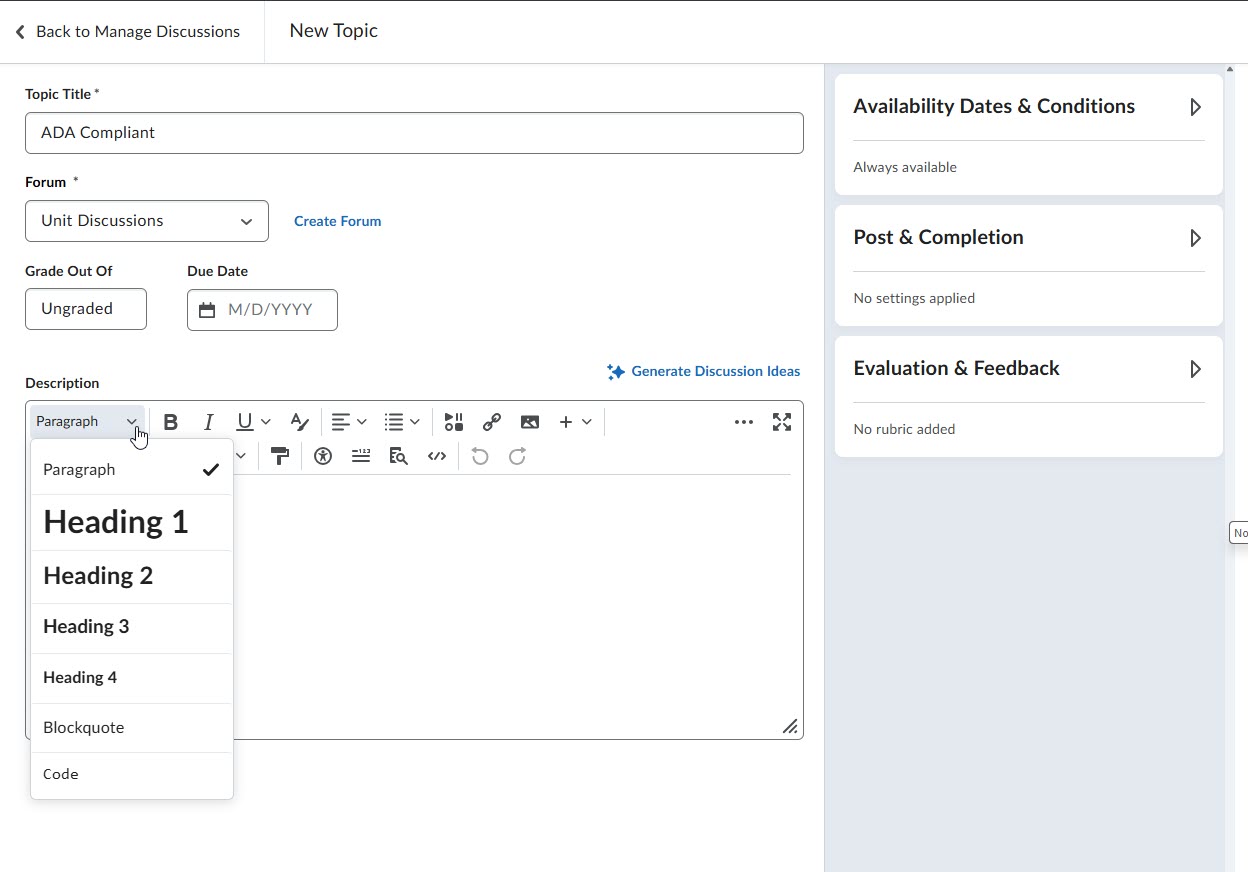
- Use headings (e.g., Heading 1, Heading 2) to structure your content. This helps with
navigation for screen readers.
- Alt Text for Images
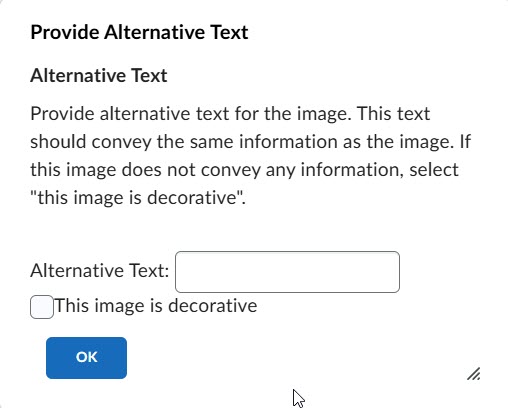
- If you include images, provide descriptive alt text. This allows visually impaired
users to understand the content. Once you embed the image, there will be an option
to include alt-text.
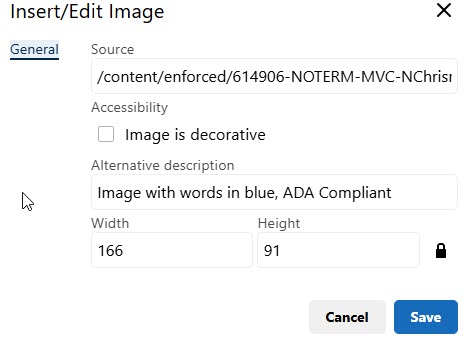
- Even after the image has been added, the alt text can be viewed/edited by clicking
on the image and selecting on "Image Options" (4th icon on the right - looks like
the normal insert image icon)
- Clear and Simple Language
- Use straightforward language and avoid jargon to ensure comprehension for all readers.
- If you include images, provide descriptive alt text. This allows visually impaired
users to understand the content. Once you embed the image, there will be an option
to include alt-text.
- Proper Formatting
- Use bulleted or numbered lists for better readability. Avoid long paragraphs.
- Contrast and Color Use
- Ensure good contrast between text and background colors. Avoid using color alone to convey information.
- Descriptive Links
- Use clear and descriptive text for hyperlinks instead of "click here." This helps
users understand the link's purpose.
- Example: Instead of using "Click Here!", phrase it to say "To get to the MVCC homepage, please click on this hyperlink provided!"
- Use clear and descriptive text for hyperlinks instead of "click here." This helps
users understand the link's purpose.
- Tables for Data
- If using tables, ensure they are simple and include headers to make the information
clear. On the Rich text editor box, select the plus sign and then table. Select
the "More Options" at the bottom of the insert table screen
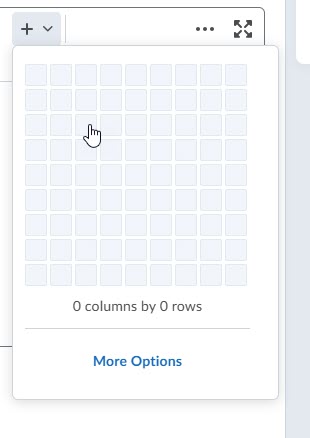 You will then enter the number of columns and rows you need ALONG with selecting the
"Show Caption" option before selecting the Save button
You will then enter the number of columns and rows you need ALONG with selecting the
"Show Caption" option before selecting the Save button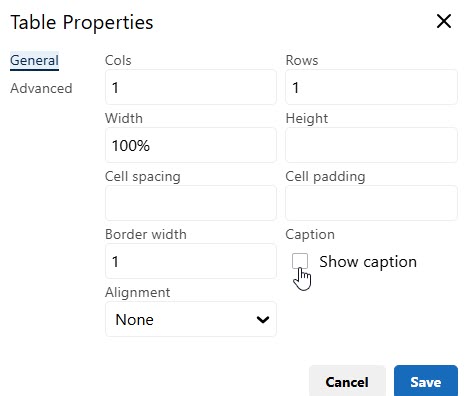 You will enter the caption for your table. You will want to use the appropriate headings
(by selecting the H1 and H2 options) for your caption and column headers
You will enter the caption for your table. You will want to use the appropriate headings
(by selecting the H1 and H2 options) for your caption and column headers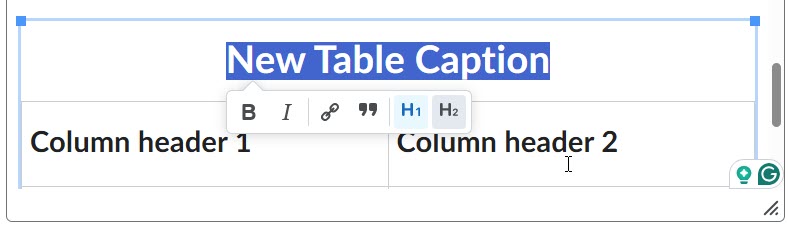 Avoid Excessive Formatting
- Limit the use of bold, italics, or other formatting to avoid distractions.
- If using tables, ensure they are simple and include headers to make the information
clear. On the Rich text editor box, select the plus sign and then table. Select
the "More Options" at the bottom of the insert table screen
- Check Accessibility Tools
- Use any built-in accessibility checker in Canvas to identify and fix potential issues.
- Provide Transcripts for Multimedia
- If you include videos or audio, provide transcripts to ensure all students can access the information.
By following these guidelines, you can create a discussion post that is accessible to all student peers, promoting a more inclusive learning environment.
To make a Zoom meeting more accessible, consider the following strategies:
- Enable Accessibility Features
- Closed Captioning: Use the built-in closed captioning feature or enable third-party captioning services.
- Screen Reader Compatibility: Ensure participants know Zoom is compatible with screen readers.
- Use Chat Functionality: Use the chat function to communicate in the instance you are having mic issues.
- Use Clear Language
- Speak clearly and avoid jargon. Encourage participants to do the same for better understanding.
- Encourage Use of Video
- Encourage participants to turn on their cameras to facilitate visual cues and engagement.
- Manage Audio Quality
- Use a good microphone and minimize background noise. Encourage participants to mute when not speaking.
- Record the Meeting
- Record sessions (with consent) for those who may need to review the content later.
By implementing these strategies, you can create a more inclusive environment for all participants in your Zoom meetings.
Maximize the legibility of your document
- Use larger font size for low-vision readers
- For users who require large print documents, consult the guidelines from the American Council of the Blind
- For general use, 14-16pt font can increase readability
- Use a sans serif font such as Arial or Calibri
Use alt text for any images
- Right-click the image, and select "View Alt Text..." to bring up the alt text pane
- Type a 1-2 sentence description that accurately and succinctly describes the picture
- If a picture is purely decorative, or the contents has been described elsewhere in your document, mark the picture as decorative so a screen reader will skip it
- Here's a link to a resource on authoring meaningful alt text
Use built-in headings to separate discrete sections of your document
- Highlight your heading
- Hit ctrl + alt + 1, 2, or 3, depending on your heading level
- Heading level 1 should be the title
- Heading level 2 will indicate main subsections or chapters
- Heading level 3 will be separate subjects within those subsections
- Give your worksheets unique, descriptive names
- Avoid default names (Sheet1, Table1, etc.)
- Make sure your content is described in the title (e.g., Mileage2026, Supplies_Inventory, etc)
- Make sure there is text in cell A1
- Screen readers start in cell A1 by default
- If you have a table, make A1 the title of your table
- For long or complex worksheets, use A1 to add instructions or an overview of the content
- Be clear and concise about what’s being presented and how to use the worksheet
- Use a simple structure
- Don’t include split or merged cells
- Avoid using nested tables
- Avoid blank rows or columns
- If you want to specify that no information is needed or available, use “n/a”, or “intentionally left blank”
- Use accessible hyperlink text
- Rather than using the entire URL, use the name of the website as the hyperlink, so it’s obvious to the reader exactly where it goes
- Use sufficient contrast for text and background colors
- Insufficient contrast can make your text difficult or impossible to read for people with low vision
For more information, See Microsoft Excel accessibility directions
- Include alternative text with all visuals
- Right-click on your image and select “View alt text”
- Type a short, accurate description of what is in the picture
- If your content is purely decorative, check the “Mark as decorative” option below the alt text field
- Create accessible slide structure
- Use built-in slide layouts to make sure tags are applied correctly for screen readers
- Give a unique and descriptive title to each slide
- For more information, Microsoft has a support page on titling PPT slides
- Double check the reading order to make sure the progression is logical and easy to
follow
- Check out Microsoft’s support page on using the Reading Order pane for more information
- Avoid using tables if possible
- If tables are necessary, keep them simple, avoid merged cells, and specify header rows
- Use accessible font, formatting, and color
- Use sans serif fonts, and avoid using italics
- Avoid including images of text
- Don’t rely on color as the only method of conveying meaning
- Use labels in graphs, and make lists of content instead of using color coding
- Provide alternative formats if possible
- Check out the attached documents for instructions on how to export your PPT to a screen reader-friendly Word document
- Download the PPT and follow along with the step-by-step guide to turn it into a document
- Check your document against the attached Word doc to compare your results
- Check accessibility as you go
- Use the built-in accessibility checker to flag any issues and provide recommendations
It’s important to proactively consider accessibility in all that we do and minimize the need for retroactive accommodation. To that end, all of us should be working toward making our emails as accessible as possible. Paying attention to just a few things will get you started practicing making all your Outlook emails compliant:
- Use meaningful subject lines in plain language to describe your specific intent
- Avoid generic, non-descriptive subjects like "Question" or "FYI" without any other contextual information
- Use true headings (or bolded section labels) if you can separate your content into
discrete, labeled sections
- In Outlook, highlight your text, and hit ctrl + alt + the number corresponding to the level of your heading (1, 2, or 3)
- Avoid using images of text and add alt text to all images
- Right-click on your image, and select "Add alternative text"
- If a picture is purely decorative, or the contents has been described elsewhere in your email, mark the picture as decorative so a screen reader will skip it
- Here's a link to a resource on authoring meaningful alt text
- Make sure you add alt text to any images that are in your email signature as well
- Use accessible link formatting, i.e., avoid the use of long URLs and instead use a
hyperlink worded in plain, descriptive language
- Make sure you do this for any links in your email signature, too
- Avoid using emojis - a screen reader will read the technical name and may disrupt the flow of the message, possibly confusing the reader
- Avoid using jargon when addressing a general audience, and never use uncommon abbreviations or acronyms without explanation of meaning
Outlook 365 has an accessibility checker, which is available in the "Message" tab, and using immersive reader while proofreading can catch missing alt text. Before sending your email, consider clicking on the "View" tab, and selecting the immersive reader option to proofread your content.
For a more complete accessibility checklist, check out this step-by-step guide from the A11Y Collective.